
Put the tournament on stream
Scores and standings that update by themselves over your footage. Ten minutes, once.
All you need:
OBS (version 28 or newer) and the links the tournament organiser sends you. No plugins, no Rankly account, no sign-in.
The score over your footage
One Browser source, and it updates by itself all day long.
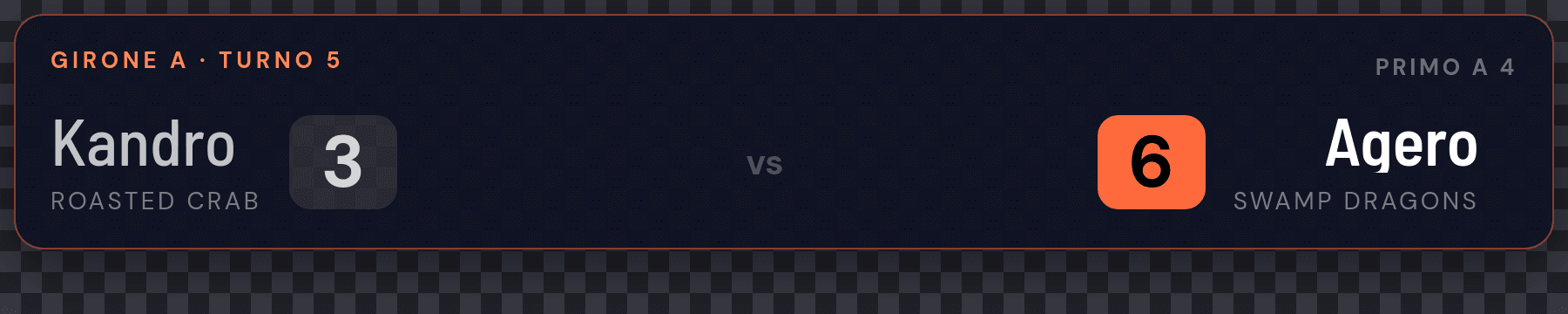
- In OBS: Sources → + → Browser.
- Paste the link into the URL field.
- Enter the width and height shown next to the link.
- Untick «Shutdown source when not visible».
Drag it wherever you like. The background is already transparent: no filters, no chroma key.
Set it up before the tournament. The link is the same from draft to final: you can put it in OBS even days before. Until the start the overlay stays empty, and it lights up by itself when the tournament starts. To arrange your scene, ask for the link with test data: until the start it shows a group with made-up names (and, in the score, a finish every five seconds), then switches by itself to the real data. Don’t keep it on air before the start.
In the score, every finish the referee records triggers an animation inside the box, on the side of whoever scored. If your camera sees the players the other way round, flip them from the control panel with «⇄ Swap sides» (step 2).
There are other overlays besides the score
The organiser can send you the link to each one. They’re all added the same way, even on different scenes.
- Score — the two names and the score, which goes up with every launch the referee records.
900 × 180 - Extended score — the score and below it, in the same width, form, head-to-head and prediction.
900 × 270 - Prediction — a column to put on the side: who’s the favourite, with form and the current score.
440 × 310 - Head-to-head — a column: how it ended the other times these two met.
440 × 350 - Group standings — the top eight.
520 × 470 - Next matches — to fill the gaps during table changeovers.
660 × 370
You choose which match is shown
A panel inside OBS, next to your scenes. It doesn’t go on air: it’s for you.
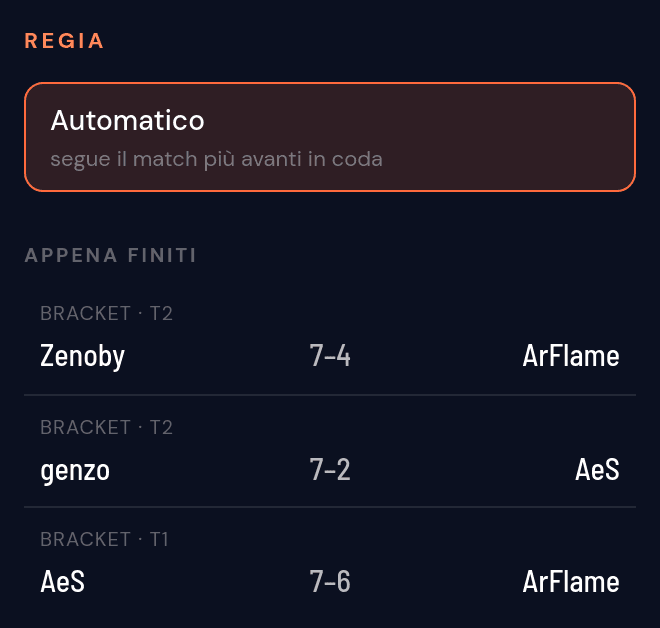
- In OBS: View → Docks → Custom Browser Docks.
- Give it a name («Rankly»), paste the control panel link, press Apply.
- Drag the panel wherever it suits you.
Tap a match and every overlay switches to it. Automatic makes them follow the most advanced match by themselves again. At the top are the matches in progress, with the table they’re played on; with several groups you can narrow the list to one. «⇄ Swap sides» flips the two players on every overlay, for when the camera sees them the other way round; another tap puts them back.
Camera fixed on one table? Ask for the link that follows the table: the overlay shows the match called there and moves on to the next by itself, without you touching the control panel (which doesn’t affect that source). With several cameras, one source per table.
The tournament inside Twitch
Optional, and unrelated to OBS: it’s for people watching on their phones.
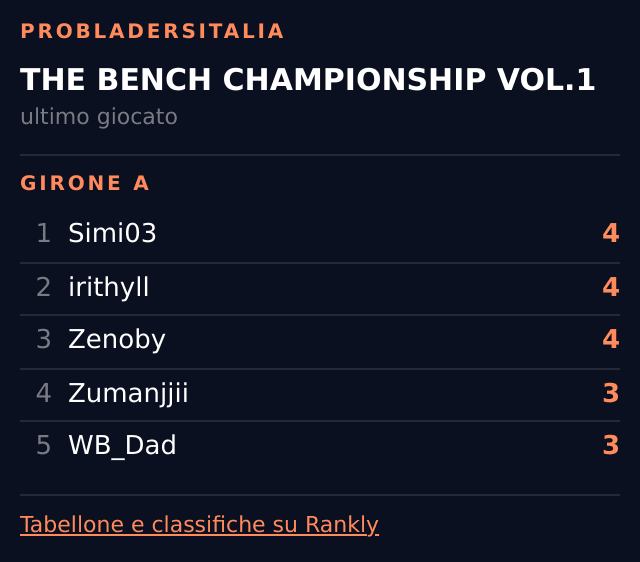
A panel under your player with the tournament, the matches and the standings — plus a strip over the video with the match on air. You install it yourself on your Twitch account: it’s free, there’s no approval to wait for and nobody else sees it.
How to install it, step by step
You need a Twitch account with two-factor authentication turned on.
- Go to
dev.twitch.tv/console/extensions/create. - Name: Rankly. Types: tick Panel and Video - Fullscreen/Overlay. Panel Height:
400. - In Asset Hosting enter:
panel.html,video_overlay.html,config.html(in that order: panel, overlay, configuration). - In Capabilities → Allowlist for URL Fetching Domains add
api.rankly.it. This can’t be skipped: without it, the panel stays empty. - In Files upload the zip as it is, without unzipping it.
- Press Move To Hosted Test.
- On your channel: Settings → Extensions → Rankly, activate it and press Configure.
- Enter the community’s address on Rankly (for example
pbi) and save.
Done: from now on it shows that community’s live tournament by itself, and when it ends it moves on to the next one.
Good to know
Nothing shows up
If the tournament hasn’t started yet the overlay stays transparent on purpose: no empty box appears on air. If the tournament is running, right-click the source → Refresh cache of current page.
If it’s the panel inside Twitch that’s empty: almost always api.rankly.it is missing from the allowlist, or you haven’t entered the community’s address in the extension settings yet.
It looks cut off
The source’s width and height don’t match the size shown: fix them in the properties. Don’t drag the corners, or the text gets blurry.
Putting it on a website instead of OBS
Add &adatta=1 to the link and put it in an iframe: the overlay takes the iframe’s width keeping its proportions, and scala is no longer needed.
For the height, the page receives a message on every change: { type: 'rankly:overlay:height', height }. You recognise your own iframe from event.source and give it that height, as with the embedded tournament page.
The background stays transparent if the iframe has color-scheme: normal: with a colour scheme different from the overlay’s, the browser paints a solid background.
The score doesn’t go up during the match
It means the referee is only recording the final result instead of the single launches: in that case it updates when the match ends. It’s up to whoever is refereeing.
What Rankly doesn’t do (yet)
It doesn’t open or resolve Twitch predictions, doesn’t write in chat, doesn’t switch scenes by itself at the end of a match. The extension shows the tournament but isn’t interactive: viewers watch, they don’t vote.
If you need these, tell the tournament organiser.
Running the tournament and looking for the links? They’re on the tournament’s Overlay page, in your dashboard.